
How to Check Preflop Ranges in GTO Wizard
Learn how to browse preflop solutions in GTO Wizard. Step-by-step guide covering condition setup, reading range charts, and checking 3-bet ranges with screenshots.
📝 About this article: A guide to GTO Wizard's solutions screen. Reading How to Read a Hand Range Chart and Position-Based Open Ranges first will help. If you don't have an account yet, start with GTO Wizard Pricing & Registration.
You've memorized range charts, but have you ever wondered, "Am I really getting this right?" With GTO Wizard's solutions screen, you can check mathematically correct preflop strategies anytime. This article walks you through opening the screen, reading range charts, and checking 3-bet ranges — all with screenshots.
What You'll Learn
- How to open the solutions screen and set conditions
- What the range chart colors mean and how to read them
- How to check hand details (mixed strategies)
- How to check 3-bet ranges against an open
Once you know how to check ranges, your poker study will accelerate dramatically.
- 🃏 Stop second-guessing which hands to play — No more wondering "Should I play this hand?" before the flop
- 📈 Find your own mistakes with data — Build a habit of checking the correct answer with numbers, not gut feeling
- 🧱 Build a solid foundation for poker study — Once your preflop is solid, your postflop decisions become clearer too
How to Open GTO Wizard's Solutions Screen
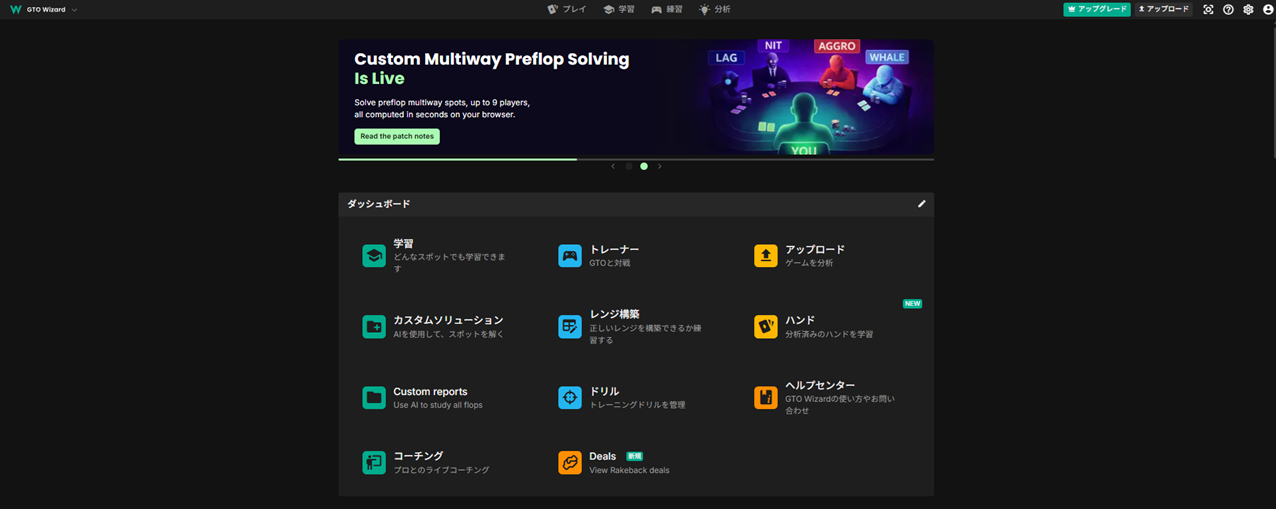
After logging in to GTO Wizard, click "Browse" on the dashboard. This takes you to the solutions screen where you can instantly see which hands to play from each position.
📝 If you don't have a GTO Wizard account yet, create your free account first.
Preflop Range Condition Settings [Recommended Defaults]
Click the "Change" button in the top-left to configure conditions.
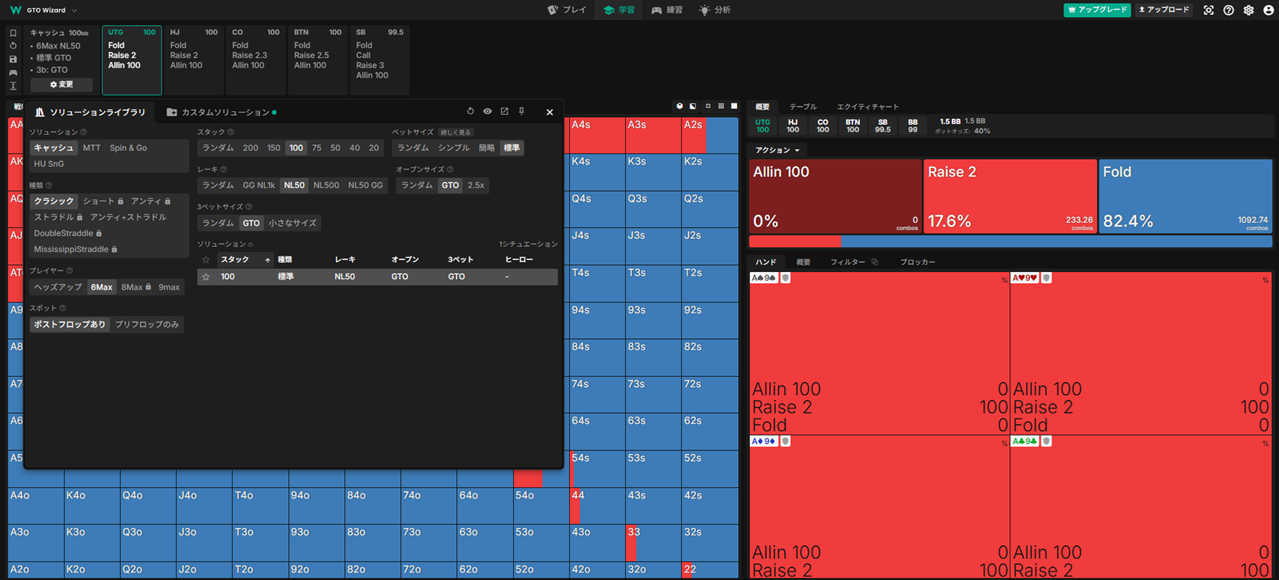
We recommend starting with these settings:
| Setting | Value |
|---|---|
| Solution | Cash |
| Stack | 100 |
| Players | 6Max |
| Rake | NL50 |
| Bet Size | Standard |
| Open Size | GTO |
| 3-Bet Size | GTO |
💡 NL50 refers to online cash games with 0.50 blinds. Optimal strategies in GTO Wizard vary depending on the rake conditions. Start with NL50.
Range Chart Colors: What They Mean and How to Read Them
After setting the conditions, click a position tab at the top (UTG, HJ, CO, BTN, SB). The open range for that position appears as a 13×13 grid.
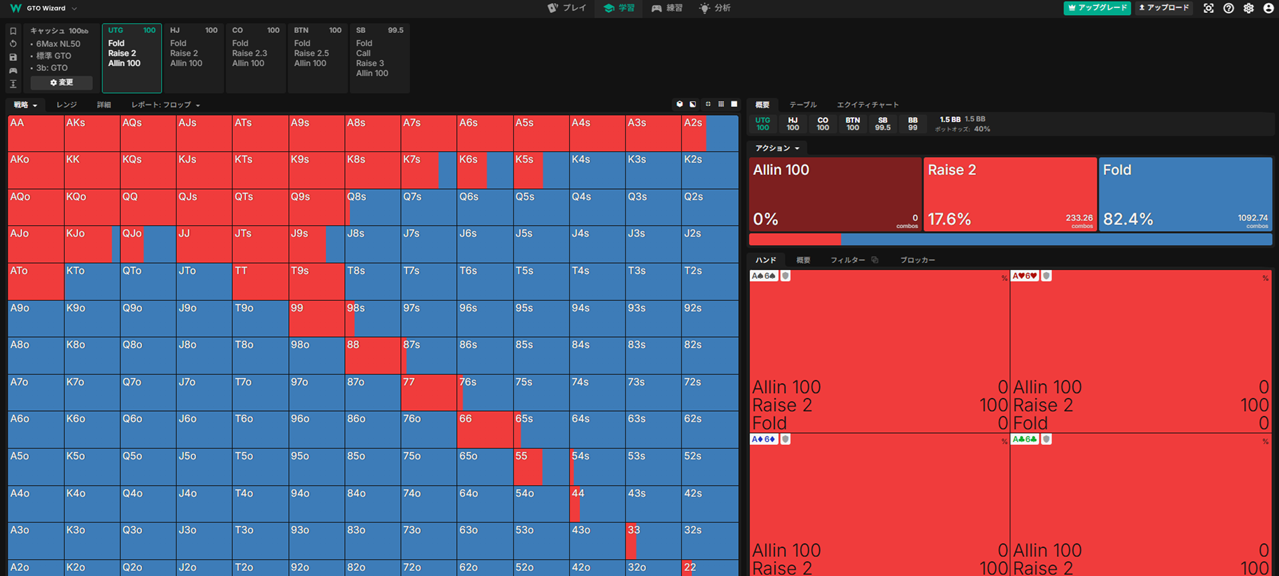
The colors are straightforward:
| Color | Action |
|---|---|
| Red | Raise (open) |
| Blue | Fold |
Compare this with the ranges you learned in Position-Based Open Ranges. You'll see that UTG has few red squares (raise), while BTN has significantly more.
How to Check Mixed Strategies for Individual Hands
Click a specific square on the grid to see details in the right panel:
- Action breakdown (e.g., Raise 2 → 17.6%, Fold → 82.4%)
- Combo-level strategy (different suited combos may have different frequencies)
Squares showing a mix of red and blue represent "mixed strategies." The mathematically correct strategy says this hand should raise at a certain frequency and fold the rest.
💡 Start by identifying solid red squares (100% raise) and solid blue squares (100% fold). Memorizing mixed-strategy frequencies can wait.
How to Check BTN's 3-Bet Range Against a UTG Open
So far we've looked at open ranges — the first raise in a hand. GTO Wizard also lets you check what to do when someone else has already opened.
Let's try a specific example: what should BTN do when UTG opens? The horizontal bar above the range chart is the "action tree." Just select each position's action in order.
- Click UTG's "Raise 2"
- Click HJ's "Fold"
- Click CO's "Fold"
Now the BTN tab is selected, showing BTN's strategy against a UTG open.
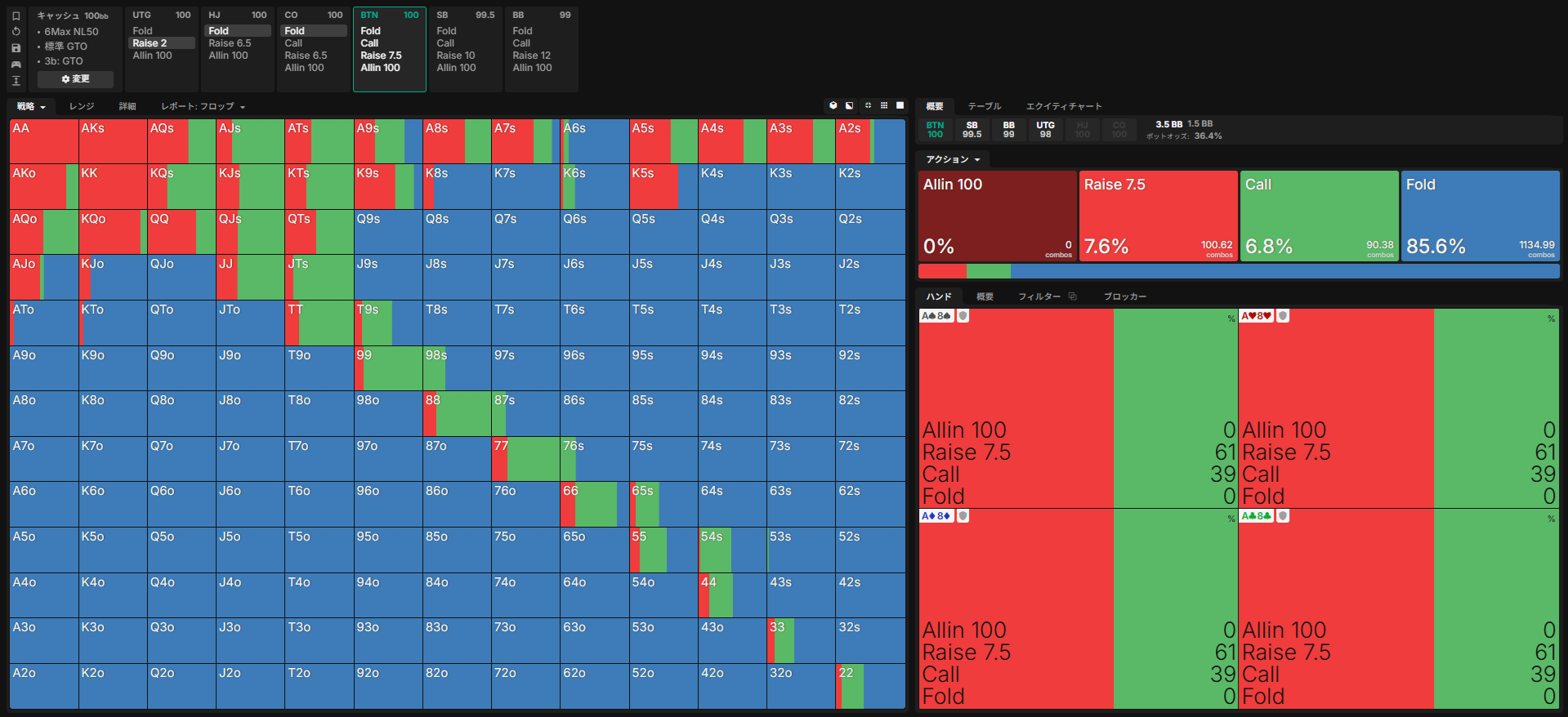
Instead of just two colors (raise and fold), you now see three colors:
| Color | Action |
|---|---|
| Red | Raise (3-bet) |
| Green | Call |
| Blue | Fold |
By changing the action tree combinations, you can check optimal strategies for any scenario — "What does BTN do when CO opens?" or "What does BB do when BTN opens?" and so on.
Now that you know how to check ranges, try practicing with the drill feature to reinforce what you've learned.
🎯 Summary
- Open the solutions screen by clicking "Browse" on the dashboard
- Recommended settings: Cash, 6Max, NL50, Stack 100
- Range chart colors: Red is raise, blue is fold — start by identifying 100% squares
- Use the action tree to check 3-bet ranges against opens from different positions
Found this helpful?
Bookmark this page to revisit anytime!
Ctrl+D (Mac: ⌘+D)
Found an error or have a question about this article? Let us know.
✉️ Contact Us
📝 Related Glossary Terms

![How Ten-Four Players Actually Use Colour Labels [Konasho Monthly vol.1]](/images/thumbnails/article-konasho-app-label-features-en-sm.webp)
![The Man Who Climbed Back from −3000bb, Ten-Four Warrior ako-ao [Konasho Monthly vol.2]](/images/thumbnails/article-konasho-ako-ao-interview-en-sm.webp)
This article includes solution screens from GTO Wizard. Copyright in those figures belongs to GTO Wizard.