How to Use GTO Wizard for Preflop Strategy
Learn how to use GTO Wizard's free plan to check preflop optimal strategies. A step-by-step guide covering account registration, browsing solutions, and practicing with drills.
📝 About this article: Column | A tool introduction for those who have learned the basics of range charts. Reading How to Read a Hand Range Chart and Position-Based Open Ranges first will help.
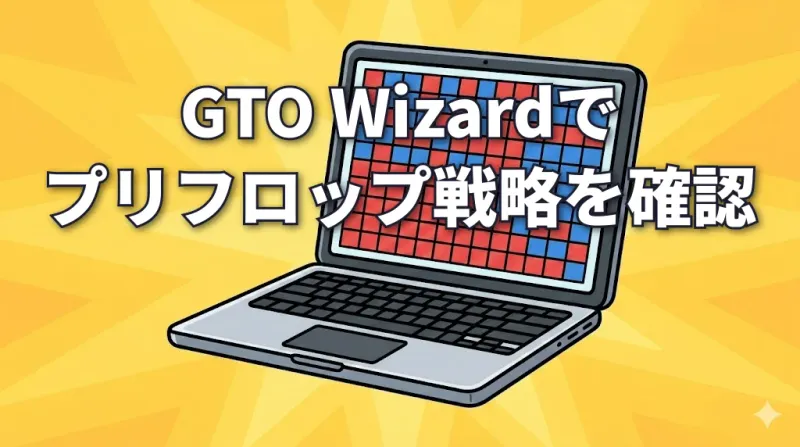
You've memorized range charts, but have you ever wondered, "Am I really getting this right?" With GTO Wizard, you can check solver-calculated optimal strategies anytime. This article walks you through registration, browsing solutions, and practicing with drills — all on the free plan.
What You'll Learn
- What GTO Wizard is
- How to create a free account
- How to read preflop solution screens
- How to test your decisions with drills
What Is GTO Wizard?
📝 GTO Wizard: A web tool that presents solver (a program that mathematically calculates optimal strategies) results through easy-to-read range charts and training features.
Running a solver yourself requires expensive software and massive computation time. GTO Wizard lets you browse those results easily in your browser.
Even on the free plan, you can:
- Browse preflop solutions — Check open ranges and 3-bet ranges for each position
- Drills — Practice choosing the correct action for dealt hands
Account Registration
Creating a GTO Wizard account takes just 3 steps.
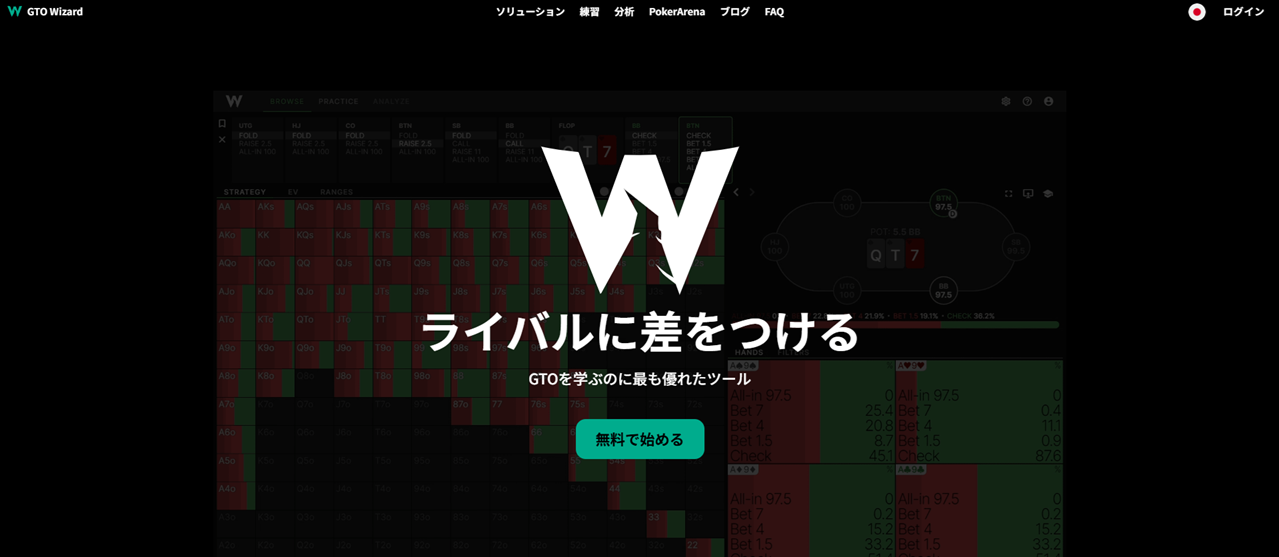
Step 1: Visit GTO Wizard and click "Start Free."
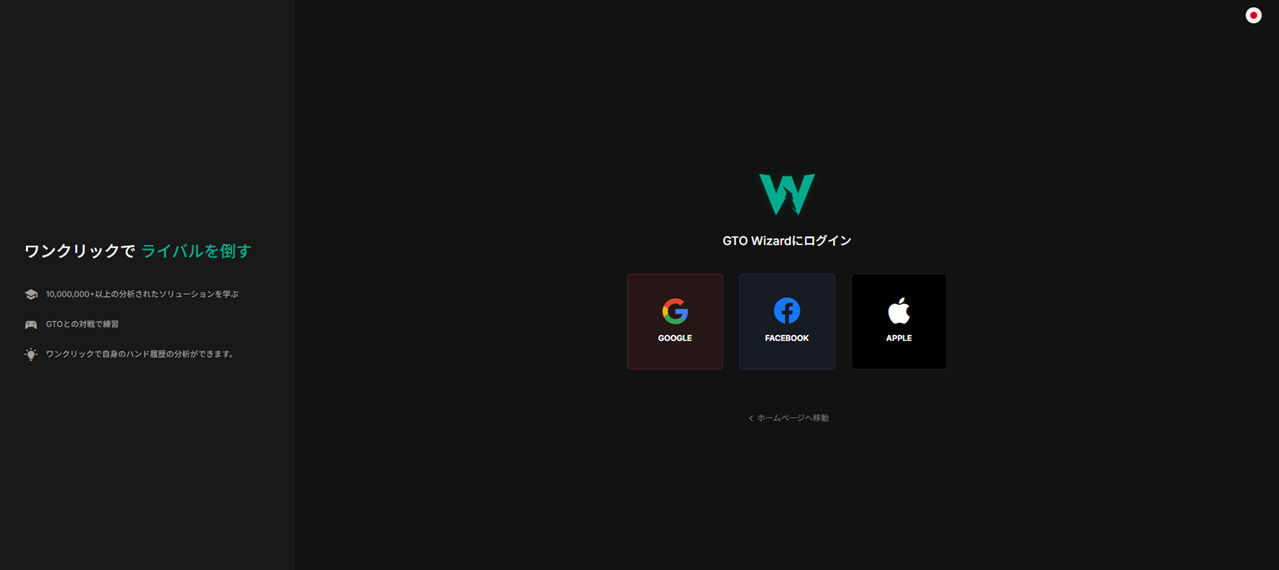
Step 2: Sign in with Google, Facebook, or Apple. There is no email registration — social login only.
Step 3: You're in. The dashboard appears.
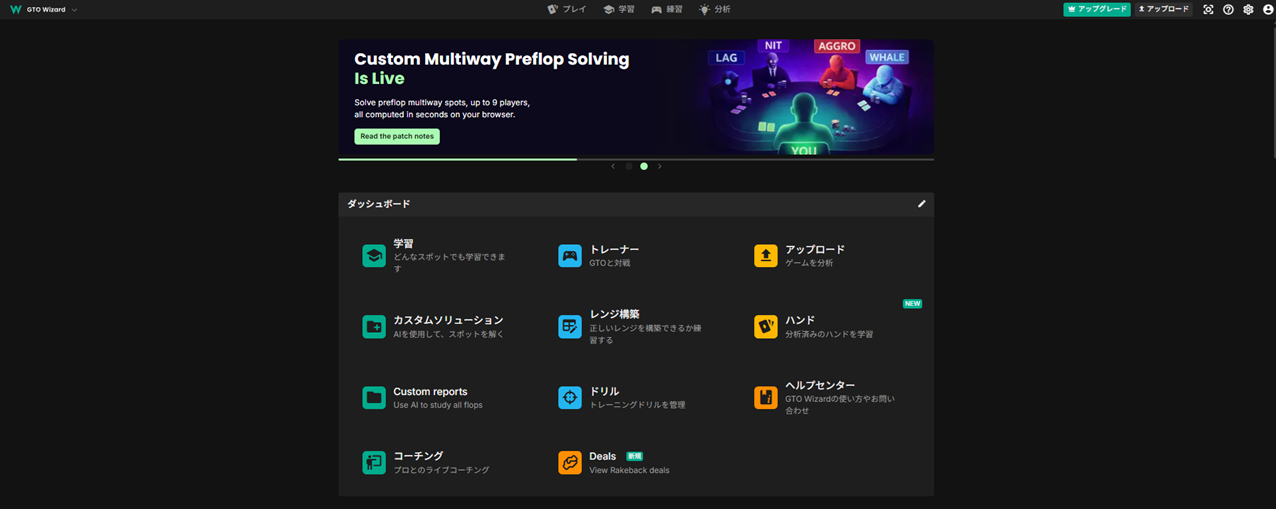
You can use the free plan as-is — no payment required.
Browsing Preflop Solutions
Click "Browse" on the dashboard to open the solutions screen. Here you can check each position's open range as calculated by the solver.
Setting the Conditions
Click the "Change" button in the top-left to configure conditions.
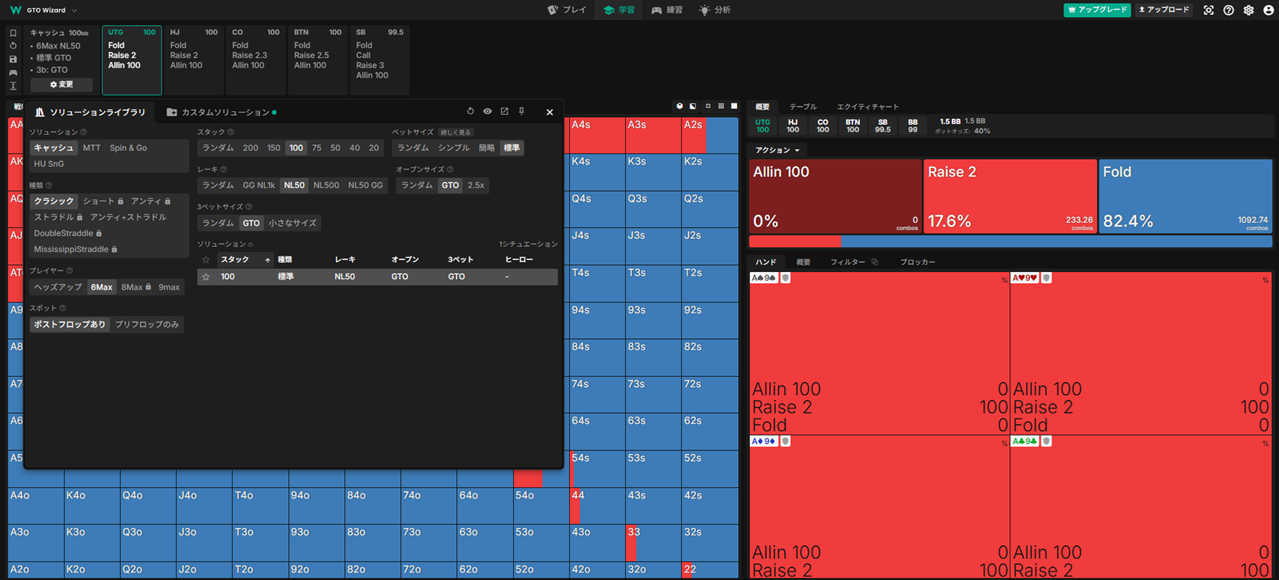
We recommend starting with these settings:
| Setting | Value |
|---|---|
| Solution | Cash |
| Stack | 100 |
| Players | 6Max |
| Rake | NL50 |
| Bet Size | Standard |
| Open Size | GTO |
| 3-Bet Size | GTO |
💡 NL50 refers to online cash games with 0.50 blinds. Optimal strategies in GTO Wizard vary depending on the rake conditions. Start with NL50.
Reading the Range Chart
After setting the conditions, click a position tab at the top (UTG, HJ, CO, BTN, SB). The open range for that position appears as a 13×13 grid.
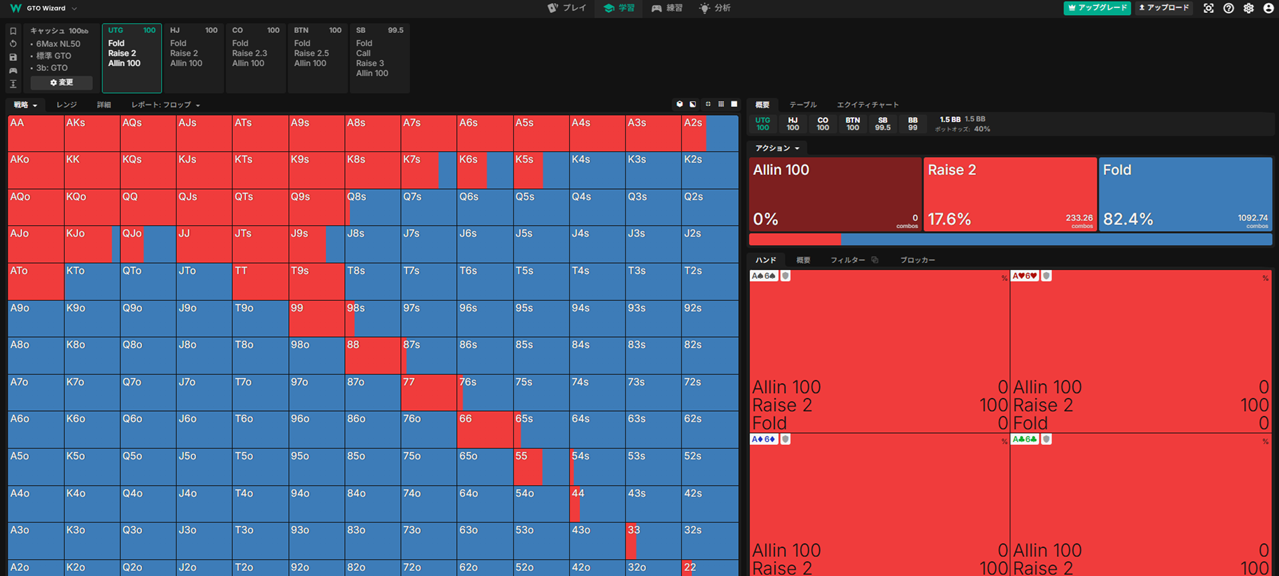
The colors are straightforward:
| Color | Action |
|---|---|
| Red | Raise (open) |
| Blue | Fold |
Compare this with the ranges you learned in Position-Based Open Ranges. You'll see that UTG has few red squares (raise), while BTN has significantly more.
Checking Hand Details
Click a specific square on the grid to see details in the right panel:
- Action breakdown (e.g., Raise 2 → 17.6%, Fold → 82.4%)
- Combo-level strategy (different suited combos may have different frequencies)
Squares showing a mix of red and blue represent "mixed strategies." The solver has calculated that these hands should raise at a certain frequency and fold the rest.
💡 Start by identifying solid red squares (100% raise) and solid blue squares (100% fold). Memorizing mixed-strategy frequencies can wait.
Practice with Drills
Reading solutions is great, but practicing with the drill feature helps you retain what you've learned much faster.
Starting a Drill
Step 1: Click "Practice" in the top navigation.
Step 2: Select a drill from the left sidebar. Start with "Master RFI - NL50."
📝 RFI (Raise First In): Raising when all players before you have folded. This is the same as "open raising," which you learned in Preflop Play: Open Raise & 3-Bet.
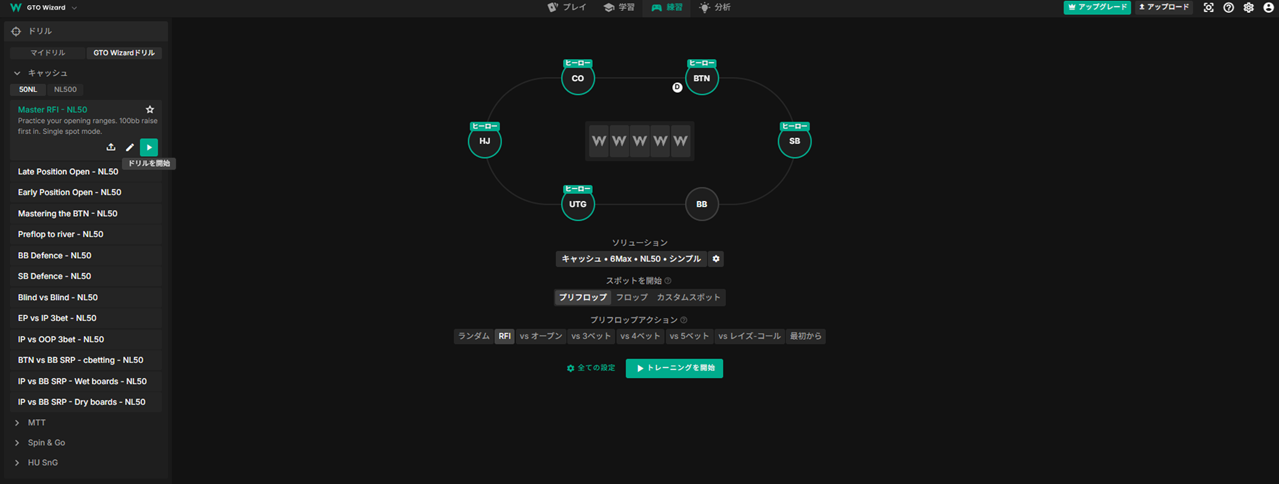
Step 3: Click "Start Training."
Reading the Quiz Screen
When the drill starts, your position and hand appear on the table.
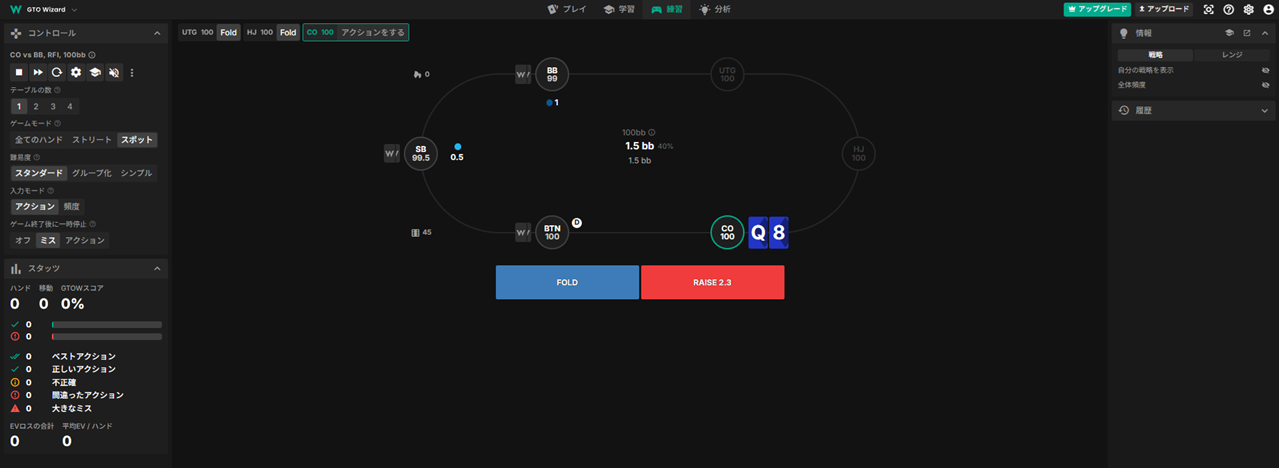
Here's how to read the screen:
| Area | What It Shows |
|---|---|
| Top bar | Previous players' actions (e.g., UTG Fold → HJ Fold) |
| Center | Your position and hand (e.g., CO with Q♠8♦) |
| Bottom buttons | Your options (FOLD / RAISE 2.3) |
Check the previous players' actions, then choose the correct action based on your hand and position.
Understanding Results
After completing a set of hands, the results screen appears.
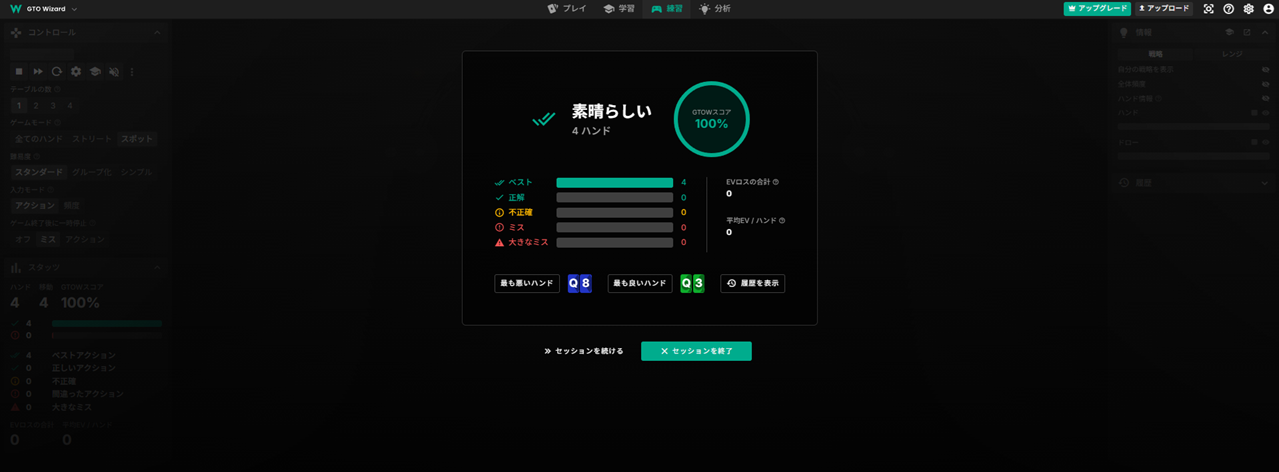
| Metric | Meaning |
|---|---|
| GTOW Score | Accuracy rate. Closer to 100% is better |
| Best | Exactly matched the solver's choice |
| Correct | Within acceptable range |
| Inaccurate | Slightly off |
| Mistake | Clearly wrong choice |
| Big Mistake | High EV loss — a serious error |
📝 EV Loss: A number showing how much your choice lost compared to GTO (optimal strategy). Closer to 0 means your decisions are closer to GTO.
Tips for Effective Practice
💡 Recommended practice routine
- Start with "Master RFI" — 10 hands per day (the free plan allows up to 10 per day)
- Review mistakes using "Show History" and look up the reasoning in the solutions screen
❓ FAQ
Can I practice more than 10 hands per day?
The free plan limits drills to 10 hands per day. If you want more practice, upgrading to a paid plan gives you unlimited drill access. We recommend starting with the free plan and building a daily habit first.
🎯 Summary
- GTO Wizard is a free tool that lets you browse solver results in your browser
- The solutions screen shows each position's open range in red (raise) and blue (fold)
- The drill feature compares your decisions against GTO and scores you with a GTOW Score
- Start with the "Master RFI" drill — 10 hands per day
Want to deepen your understanding of ranges? Try Estimating Your Opponent's Hand Range to practice reading opponent ranges.
Found this helpful?
Bookmark this page to revisit anytime!
Ctrl+D (Mac: ⌘+D)
Found an error or have a question about this article? Let us know.
✉️ Contact Us